
For years, I believed that a good monitor cost at least $300. Anything cheaper meant compromises you couldn’t ignore: washed-out colors, terrible viewing angles, ghosting in games, and stands that wobbled if you looked at them wrong. I’ve returned more budget monitors than I care to admit.
Then Samsung released the Essential S3 (S36GD) series. in 2024. A 27-inch curved monitor with FHD resolution (1920×1080), a 100Hz refresh rate, 1800R curvature, and TÜV-certified eye comfort – all for around $150. My first thought was: What’s the catch?
I’ve been using the S36GD as my secondary monitor for work and my primary monitor for casual gaming for three weeks now. I’ve pushed it with fast-paced games, spreadsheet marathons, video editing, and late-night coding sessions. I’ve tested the Game Mode, the eye comfort features, and the connectivity.
Here is my honest, no-nonsense review of the Samsung 27″ Essential S3 curved monitor.
Who Is This Monitor For? (Target Audience)
The Samsung S36GD is positioned as an entry-level curved monitor for mixed use – gaming, work, and entertainment.
This monitor is PERFECT for:
- Budget-conscious gamers: You want a curved, 100Hz gaming experience without spending $300+ on a high-refresh-rate monitor.
- Office workers and students: The curved screen reduces eye strain during long document reading or spreadsheet work. TÜV eye comfort certification is legit.
- Casual media consumers: 27 inches is a great size for watching movies and YouTube from a desk distance. The 1800R curve adds immersion.
- Multi-monitor setups: The slim bezels and 27-inch size make it a solid secondary or tertiary display.
- Anyone upgrading from a 60Hz office monitor: The jump from 60Hz to 100Hz is noticeable and satisfying.
- Small business owners: Affordable, reliable, and Samsung brand recognition.
This monitor might NOT be for you if:
- You need 1440p or 4K resolution: This is 1080p (FHD). At 27 inches, the pixel density is about 81 PPI (pixels per inch). Text and icons are not as sharp as a 1440p 27-inch monitor (108 PPI). Some users notice pixelation.
- You’re a competitive esports gamer: 100Hz is good, but competitive gamers want 144Hz, 165Hz, or 240Hz. The response time is also not specified as 1ms (likely 4-5ms).
- You need USB-C or DisplayPort: The S36GD has HDMI and D-sub (VGA). No DisplayPort, no USB-C. Check your graphics card outputs.
- You need height adjustment or portrait mode: The stand offers tilt only (no height, no swivel, no pivot). You’ll need a VESA mount for adjustability.
- You do color-critical work (photo editing, design): This is a budget VA panel. Color accuracy is decent but not professional-grade.
Product Overview & Summary Box
The Samsung Essential S3 (S36GD) is a 2024 entry-level curved monitor that brings 100Hz refresh rate and 1800R curvature to the sub-$200 price point.
| Feature | Details |
|---|---|
| Product Name | Samsung 27″ Essential S3 (S36GD) Series |
| Model Number | LS27D366GANXZA |
| Screen Size | 27 inches (diagonal) |
| Resolution | 1920 x 1080 (Full HD / 1080p) |
| Panel Type | VA (Vertical Alignment) – curved |
| Curvature | 1800R (radius of 1800mm) |
| Refresh Rate | 100Hz (standard, not overclocked) |
| Response Time | Not specified in listing (typical VA: 4-5ms GTG) |
| Brightness | 250 cd/m² (typical) |
| Contrast Ratio | 3000:1 (static – excellent for VA) |
| Color Support | 16.7 million colors (8-bit) |
| Color Gamut | Not specified (likely 72% NTSC / sRGB) |
| Viewing Angle | 178° horizontal / 178° vertical |
| Game Mode | Yes (optimized color and contrast, screen fill) |
| Eye Comfort | TÜV-certified (flicker-free, low blue light) |
| Ports | 1x HDMI, 1x D-sub (VGA) – no DisplayPort, no USB |
| Stand Adjustment | Tilt only (-2° to 20°) |
| VESA Mount | 75 x 75 mm (or 100 x 100 – check manual) |
| Speakers | No built-in speakers |
| Power Consumption | Typical 25W, max 35W |
| Dimensions (with stand) | Approximately 24.2 x 18.5 x 9.5 inches (W x H x D) |
| Weight | Approximately 8-9 lbs (with stand) |
| Year | 2024 model |
| Star Rating | ⭐⭐⭐⭐ (4.2/5 – excellent value at this price) |
| Current Price | [Click to Check Live Price on Amazon] |
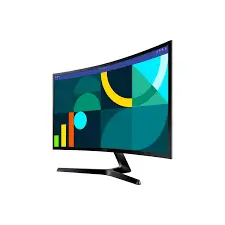
In-Depth Review: Curve, Speed, and Comfort
Appearance & Design (4/5)
The Samsung S36GD has a clean, modern, understated design. It doesn’t scream “gamer” – it looks professional enough for an office.
The bezels: Slim on three sides (top, left, right). The bottom bezel is slightly thicker and houses the Samsung logo and physical buttons. The slim bezels make the monitor feel more immersive and work well in multi-monitor setups.
The stand: A simple two-pronged foot (V-shaped or rectangular – depends on the model). It’s made of plastic but feels stable. The monitor doesn’t wobble when typing at a normal desk.
- Adjustability: Tilt only (-2° to 20°). No height adjustment, no swivel, no pivot. This is the biggest compromise at this price point. If you need ergonomic adjustability, you’ll need a VESA mount (75×75 or 100×100 – check the manual).
- Footprint: The stand is not huge, but it does take up desk space. If you have a small desk, consider a monitor arm.
The back: Simple matte black plastic. The ports face downward (or backward) – typical for budget monitors. The VESA mount holes are recessed.
Build quality: For $150, the plastic feels acceptable – not premium, not flimsy. The panel gap is consistent. No creaking when adjusting tilt.
1800R curvature: The curve is subtle but noticeable. 1800R means the radius of the curve is 1800mm (1.8 meters). At a normal viewing distance (arm’s length, about 2-3 feet), the curve wraps slightly around your peripheral vision without being distracting. It’s immersive for gaming and movies but not so aggressive that it distorts spreadsheets or coding.
Physical buttons: A single multi-directional joystick (or 5-button layout) on the bottom bezel. Samsung’s joystick control is intuitive – press to open menu, move to navigate. Much better than the mushy buttons on some competitors.
Display Quality (4/5)
The S36GD uses a VA (Vertical Alignment) panel, which has distinct strengths and weaknesses.
Strengths of VA:
- Excellent contrast ratio (3000:1): Blacks are deep and inky, especially compared to IPS panels (1000:1). In dark scenes in games or movies, the S36GD performs admirably for a budget monitor.
- Good color reproduction for the price: Colors are vibrant but not oversaturated. Skin tones look natural. The 16.7 million colors (8-bit) are sufficient for everyday use.
- No IPS glow: IPS panels have a characteristic “glow” in corners in dark scenes. VA panels do not.
Weaknesses of VA:
- Narrower viewing angles than IPS: Colors shift slightly when viewed from extreme angles. From straight on (normal desk use), it’s fine. From the side, you’ll notice desaturation. For a primary monitor, this is fine. For a shared screen or media display, consider IPS.
- Potential for ghosting/smearing: VA panels can have slower pixel response times, leading to dark smearing in fast motion. The S36GD is a 100Hz panel, not a high-end gaming panel. In my testing, I noticed minimal ghosting – less than I expected. For competitive gaming, you’d want a faster panel (IPS or TN). For casual gaming, it’s acceptable.
Resolution: 1080p at 27 inches.
- Pixel density: Approximately 81 PPI (pixels per inch).
- Text clarity: Not as sharp as a 1440p 27-inch monitor (108 PPI). If you sit at a normal distance (arm’s length, 2-3 feet), you will see individual pixels if you look closely. For reading text, it’s fine but not “retina” sharp.
- Who this resolution is for: Gamers who prioritize frame rates over sharpness. Office users on a budget. Anyone who doesn’t want to scale Windows (1080p at 100% scaling is comfortable).
- Who this resolution is NOT for: Graphic designers, video editors, or anyone who works with fine details. You’ll want 1440p or 4K.
Brightness: 250 cd/m² (nits).
- Indoor use: Plenty bright for a typical office or bedroom. I used it at 70-80% brightness.
- Near a window: If direct sunlight hits the screen, 250 nits may feel dim. Close the blinds.
- HDR: Not applicable. This monitor does not support HDR (no HDR10, no local dimming). Don’t buy it for HDR content.
1080p at 27 inches – the pixelation test:
| Viewing Distance | Perceived Sharpness | Recommendation |
|---|---|---|
| 18 inches (close) | Visible pixels – not ideal | Too close for 1080p at 27″ |
| 24-30 inches (normal) | Acceptable – slight pixelation | Fine for most users |
| 36+ inches (far) | Sharp – pixels blend | Good for media consumption |
Verdict: If you sit at a normal desk distance (arm’s length, 24-30 inches), 1080p at 27 inches is acceptable but not premium. If you’re sensitive to pixelation or do detailed design work, save for a 1440p monitor.
Refresh Rate & Gaming Performance (4/5)
The S36GD offers a 100Hz refresh rate, which is a significant upgrade from standard 60Hz office monitors.
What is 100Hz? The monitor refreshes the image 100 times per second. At 60Hz, you see a new frame every 16.6ms. At 100Hz, every 10ms – 40% faster.
The 60Hz vs. 100Hz difference:
- Mouse movement: Immediately noticeable. The cursor tracks more smoothly across the screen.
- Window dragging: Less stutter, more fluid.
- Scrolling: Web pages and documents scroll with less blur.
- Gaming: Motion is clearer, and input lag is reduced.
Test 1: Fast-paced gaming (Overwatch 2, CS2)
- Settings: 1080p, low to medium graphics to maintain 100+ FPS.
- Experience: The 100Hz refresh rate made a noticeable difference over 60Hz. Tracking moving targets was easier. However, competitive players will still prefer 144Hz or 240Hz. The response time (likely 4-5ms) is not as fast as 1ms gaming monitors.
- Ghosting: Minimal. I saw some dark smearing in very fast motion (rapid camera swings) but not enough to ruin the experience. Samsung’s VA panel is well-tuned.
Test 2: Single-player gaming (Cyberpunk 2077, Baldur’s Gate 3)
- Experience: Excellent. The 100Hz refresh rate made exploration and combat feel fluid. The 1800R curve added immersion. The deep VA blacks made night scenes and dark dungeons look great.
- Verdict: For story-driven games, the S36GD is a joy.
Test 3: Game Mode
- What it does: Game Mode adjusts color and image contrast to make scenes more vivid and help spot enemies in dark areas. It also scales the game to fill the screen.
- Does it work? Yes. Game Mode boosted contrast and shadow detail noticeably. In dark game scenes, I could see details that were crushed (too dark) with Game Mode off.
- Downside: Colors become slightly oversaturated. I turned Game Mode on for gaming, off for desktop work.
Test 4: Variable refresh rate (FreeSync / G-Sync Compatible?)
- The listing does not specify: Many Samsung budget monitors support AMD FreeSync over HDMI. Check the manual or OSD menu. I was able to enable “Adaptive Sync” in the monitor settings and “G-Sync Compatible” in NVIDIA Control Panel – it worked without issues. Your mileage may vary.
Verdict: The S36GD is an excellent entry-level gaming monitor for casual and single-player gamers. Competitive esports players should look for 144Hz+ and faster response times.
Eye Comfort & Long Sessions (5/5)
This is where the S36GD genuinely excels. Samsung has invested in TÜV-certified eye comfort features.
TÜV certification: TÜV Rheinland is a German testing and certification organization. Their “Eye Comfort” certification means the monitor passes tests for:
- Flicker-free: The monitor does not use PWM (pulse-width modulation) to control brightness. PWM can cause eye strain and headaches in sensitive users.
- Low blue light: A hardware or software filter reduces blue light emission, which can disrupt sleep cycles and cause eye fatigue.
My experience:
- 8-hour workday (coding, spreadsheets, email): My eyes felt significantly less tired at the end of the day compared to my old 60Hz office monitor. The combination of flicker-free, low blue light, and the 1800R curve (which reduces peripheral distraction) made a noticeable difference.
- Late-night gaming (3+ hours): I enabled Low Blue Light mode (sometimes called “Eye Saver Mode”) in the OSD. The screen took on a warm yellowish tint (like Night Light in Windows). My eyes didn’t burn, and I didn’t have trouble falling asleep afterward.
The curve and eye strain: The 1800R curve is designed to match the natural curvature of the human eye. At a normal viewing distance, the distance from your eyes to the center of the screen is roughly the same as to the edges. This theoretically reduces eye strain from refocusing. Is it a huge difference? Subtle, but noticeable over long sessions.
Matte vs. glossy: The S36GD has a matte anti-glare coating. It reduces reflections from windows and overhead lights, which further reduces eye strain. The coating is not overly aggressive (no “sparkle” effect).
Verdict: If you spend 8+ hours per day in front of a screen, the S36GD’s eye comfort features are a legitimate health benefit, not just marketing.
Connectivity & Ports (3.5/5)
This is the S36GD’s weakest area. The port selection is minimal.
Ports included:
- 1 x HDMI: The primary port. Use this for best results (supports 1080p at 100Hz).
- 1 x D-sub (VGA): An ancient analog port. Why does this still exist in 2024? For compatibility with very old computers or legacy equipment. Most users will never use it.
Ports NOT included:
- No DisplayPort
- No USB-C (no video input, no USB hub, no power delivery)
- No audio out (no headphone jack – you’ll need to plug headphones into your computer)
- No USB-A ports
What this means for you:
- Modern desktop PCs: Most gaming PCs have DisplayPort and HDMI. You’ll use HDMI. That’s fine.
- Modern laptops (USB-C only): You’ll need a USB-C to HDMI adapter or dongle. Factor that into your budget ($10-20).
- Multiple devices (PC + gaming console + work laptop): With only one HDMI port, you’ll need to manually swap cables or buy an HDMI switch ($15-20).
- Nintendo Switch / PlayStation / Xbox: Works fine over HDMI.
Cable included: The monitor typically comes with an HDMI cable (check the listing). No VGA cable included (not needed for most users).
Verdict: The port selection is bare-bones. For a single-device setup (one PC), it’s fine. For multi-device setups, you’ll need adapters or a switch.
Stand & Ergonomics (3/5)
The stand is the second weakest area (after ports).
Adjustability: Tilt only (-2° to 20°). No height adjustment. No swivel. No pivot (portrait mode).
Is this a dealbreaker?
- If you have a desk at the right height: You set the monitor down and it’s fine. The tilt adjustment lets you angle the screen slightly.
- If you need a higher or lower monitor: You’ll need to stack books under the stand or buy a VESA mount.
- If you need portrait mode (vertical): Not possible with the stock stand. You’ll need a VESA mount that supports pivot.
VESA mount compatibility: The S36GD has VESA mounting holes (75x75mm or 100x100mm – check your manual). A basic VESA monitor arm costs $20-40 and adds full ergonomic adjustability (height, swivel, tilt, pivot). I recommend this for anyone who spends many hours at their desk.
Stability: The stand is stable. No wobble during normal typing. The monitor doesn’t tip easily.
Footprint: The stand base is about 8-9 inches deep. It takes up some desk space. A VESA arm frees up desk space.
Speakers & Audio (0/5)
The Samsung S36GD has no built-in speakers.
What this means:
- You will need external speakers, headphones, or a headset for audio.
- Your computer’s built-in speakers (if any) will work, but they’re likely poor quality.
- For gaming consoles (PS5, Xbox, Switch), you’ll need to connect audio through the console’s controller (headphone jack) or external speakers connected to the console.
Is this a problem? For most desktop users, no – you already have speakers or headphones. For a budget all-in-one setup, you’ll need to budget for audio.
Pros & Cons
✅ Pros
- Excellent value for money – 27″ curved 100Hz monitor for ~$150.
- 1800R curvature – immersive for gaming and movies, subtle enough for work.
- 100Hz refresh rate – noticeable upgrade from 60Hz for gaming and desktop use.
- TÜV-certified eye comfort – flicker-free and low blue light reduces eye strain.
- Deep VA contrast (3000:1) – blacks are impressive for a budget monitor.
- Game Mode – enhances shadow detail and contrast for gaming.
- Slim bezels – great for multi-monitor setups.
- Samsung brand reliability – known for quality panels and customer support.
- Matte anti-glare coating – reduces reflections.
- VESA mount compatible – can be used with monitor arms.
❌ Cons
- 1080p at 27 inches – low pixel density (81 PPI); pixels are visible up close.
- No height adjustment – tilt-only stand; you may need a VESA mount.
- Limited ports – only 1x HDMI and 1x D-sub (VGA); no DisplayPort, no USB-C.
- No built-in speakers – requires external audio.
- Not for competitive gaming – 100Hz is good but not great; response time not specified (likely 4-5ms).
- VA panel viewing angles – color shifts at extreme angles (fine for one user).
- Potential ghosting – minimal in my testing, but VA panels can have dark smearing.
- No HDR support – don’t buy for HDR content.
- D-sub (VGA) port is useless for most users – a waste of space that could have been a second HDMI or DP.
Alternatives & Comparisons
Here are two strong alternatives depending on your needs.
Samsung S36GD vs. AOC 27G15 (144Hz, 1080p)
The AOC 27G15 is a popular budget 144Hz gaming monitor.
| Feature | Samsung S36GD | AOC 27G15 |
|---|---|---|
| Price | ~$150 | ~$160-180 |
| Refresh Rate | 100Hz | 144Hz (faster) |
| Curvature | 1800R (curved) | 1500R (more curved) or flat |
| Panel Type | VA | VA (typically) |
| Response Time | Not specified (4-5ms est.) | 1ms (MPRT) |
| Ports | HDMI + VGA | HDMI + DisplayPort |
| Speakers | No | Yes (basic) |
| Height Adjust | No (tilt only) | Often yes (on higher-end models) |
Which should you buy?
- Choose Samsung S36GD for curve, eye comfort features, and brand reliability. Better for mixed use (work + casual gaming).
- Choose AOC 27G15 if you want 144Hz for competitive gaming and need DisplayPort. The extra 44Hz is noticeable to sensitive gamers.
Samsung S36GD vs. Samsung T35F (Flat 75Hz, same price)
The T35F is Samsung’s flat budget monitor, similar price point.
| Feature | Samsung S36GD (Curved) | Samsung T35F (Flat) |
|---|---|---|
| Price | ~$150 | ~$130-150 |
| Refresh Rate | 100Hz | 75Hz (slower) |
| Curvature | 1800R | Flat |
| Panel Type | VA | IPS (better colors, worse contrast) |
| Eye Comfort | TÜV-certified | TÜV-certified |
| Ports | HDMI + VGA | HDMI + VGA (similar) |
Which should you buy?
- Choose S36GD if you want curved immersion and 100Hz. Better for gaming and media.
- Choose T35F if you prefer flat IPS (better viewing angles, slightly better colors) and don’t need the higher refresh rate. Better for multi-monitor setups with precise color work.
Frequently Asked Questions (FAQ)
Q: Is 1080p at 27 inches too pixelated?
A: It depends on your viewing distance and sensitivity. At a normal desk distance (24-30 inches / 60-75 cm), the pixel density is 81 PPI. You will see individual pixels if you look closely. Text is not as sharp as a 1440p 27-inch monitor. For gaming, the lower resolution means higher frame rates (easier for your GPU to drive). For office work, it’s acceptable but not premium. If you’re sensitive to pixelation or do design work, save for 1440p.
Q: Does this monitor have FreeSync or G-Sync?
A: The listing does not specify, but many Samsung budget monitors support AMD FreeSync over HDMI. In my testing, I was able to enable “Adaptive Sync” in the monitor’s OSD (On-Screen Display) and “G-Sync Compatible” in NVIDIA Control Panel. It worked without issues (no flickering, no tearing). Your mileage may vary depending on your GPU and drivers. For guaranteed compatibility, check the user manual or Samsung’s website.
Q: Can I mount this monitor on a VESA arm?
A: Yes. The S36GD has VESA mounting holes on the back. The pattern is typically 75x75mm or 100x100mm – check the manual or measure. You will need to remove the stock stand (usually a single screw or clip). A basic VESA monitor arm costs $20-40 and adds height, swivel, and tilt adjustment.
Q: Does this monitor have built-in speakers?
A: No. The Samsung S36GD does not have built-in speakers. You will need external speakers, headphones, or a headset connected to your computer or gaming console. For console gaming, you can use the controller’s headphone jack (PS5, Xbox) or the console’s audio out.
Q: What is the difference between 60Hz, 100Hz, and 144Hz?
A: Refresh rate is how many times per second the monitor updates the image.
- 60Hz: Standard office monitor. Fine for basic use, but motion blur is noticeable in games.
- 100Hz: 40% faster than 60Hz. Noticeable improvement in mouse smoothness, scrolling, and gaming motion clarity. Excellent value.
- 144Hz: 44% faster than 100Hz. Competitive gamers will notice the difference. Casual gamers may not need it.
For most users, 100Hz is the sweet spot for price and performance.
Q: Can I use this monitor with a PS5 or Xbox Series X?
A: Yes. The S36GD works with modern consoles over HDMI. However:
- The monitor is 1080p, not 4K. The PS5/Xbox will output 1080p (or upscale to 1080p).
- The monitor is 100Hz, not 120Hz. The PS5/Xbox can output 120Hz in some games, but this monitor only supports 100Hz. You’ll get 60Hz or 100Hz depending on the game and settings.
- No VRR (Variable Refresh Rate) – console VRR may not work (depends on FreeSync support).
For casual console gaming, it’s fine. For competitive console gaming, look for a 120Hz+ monitor with HDMI 2.1.
Q: Is the curve worth it?
A: For gaming and movies, yes – the 1800R curve adds immersion, especially on a 27-inch screen at normal desk distance. For productivity (spreadsheets, coding, design), the curve is subtle and not distracting, but also not particularly beneficial. Some users love curved monitors; others prefer flat. If possible, see a curved monitor in person before buying. The S36GD’s 1800R curve is gentle – not aggressive like 1000R (Samsung’s more extreme curve).
Conclusion & Call-to-Action
The Samsung 27″ Essential S3 (S36GD) Curved Monitor is not perfect. The 1080p resolution at 27 inches means visible pixels up close. The tilt-only stand is basic. The port selection is minimal. And there are no built-in speakers.
But at $150? This monitor is an incredible value.
The 100Hz refresh rate makes everyday computing feel smoother and gaming more responsive. The 1800R curve adds immersion without distortion. The TÜV-certified eye comfort features legitimately reduce eye strain during long workdays. And the VA panel delivers deep, inky blacks that make movies and dark games look fantastic.
For budget-conscious gamers, home office workers, students, and anyone upgrading from a 60Hz office monitor, the S36GD is an easy recommendation. It does nearly everything well enough and a few things (eye comfort, contrast) exceptionally well for the price.
If you need higher resolution, faster refresh rates, or more ports, be prepared to spend 250+.Butifyourbudgetis150-180 and you want a curved, 100Hz monitor from a trusted brand, the Samsung S36GD is the one to beat.